Getting your technical SEO right is like having a free lunch. Why would you not want to make use of it? Today, with Google’s limited crawl budgets and AI spam, anyone with access to ChatGPT or Grok can upload a blog post and get their content indexed.
Yes, search engines actually spend money to crawl your site. So you really want to ensure Google’s highly limited crawl budget is used well on your site.
Simply put, technical SEO is the process of ensuring your site best meets the technical requirements of search engines. The goal is nonetheless to improve search engine rankings. Higher rankings. More traffic. More revenue.
You’ll be surprised at what a good technical SEO audit, combined with deliverables and action steps, can do for your website.
Part 1: The Basic Checklist for Technical SEO (The Easy Stuff)
I ain’t going to waste your time talking about the basic, easy stuff that every other SEO blog (or agency for that matter) is able to do for you with eyes closed. However, for the sake of completeness, here’s a basic checklist.
Site Structure
- Important pages within 3 clicks of homepage
- Clear internal linking structure
- No broken internal links
- Organise your site’s content in a logical, hierarchical manner

URL Structure
- Short, descriptive URLs
- Include target keyword in URL
- Avoid parameters and long strings
XML Sitemaps
- Submit your XML sitemaps to search engines
Mobile Responsiveness
- Ensure mobile friendliness
Google has sunset the Google Search Console Mobile Usability report. You can use Google’s Lighthouse extension.
HTTPS
- Implement HTTPS
Most web hosts automatically include HTTPS and give out a free certificate. You can get a free SSL certificate with a free Cloudflare plan.
On Page SEO Technicals
- One H1 per page/post containing primary keyword
- Title tag 50–60 chars that’s inclusive of the target keyword
- H2s with target keyword variations
- Meta description 150–160 chars, including target keywords
Read: I wrote an entire detailed How-to for On-Page SEO guide.
Okay, now let’s move on to the juicy part.
Part 2: Enter Screaming Frog: The In Depth Crawl
You can download Screaming Frog for free. In short, it’s a more extensive scraping, analytical software that comes in useful for a more in depth technical SEO audit.

Here are my core essentials to scrape:
- Address (URL)
- Status Code
- Indexability
- Title 1
- Title 1 Length
- Meta Description 1
- Meta Description 1 Length
- H1-1
- Word Count
- Canonical Link Element 1
- Response Time
- Unique Inlinks
- Crawl Depth
Look for:
- 404/410 errors (Status Code)
- Non-indexable pages that should be indexed
- Missing titles/meta descriptions
- Title/meta too short (<30 chars) or too long (>60/160 chars)
- Multiple or missing H1s
- Thin content (<300 words)
- Response time >1000ms
- Important pages with <5 unique inlinks
Case Study of Problems Identified
For my crawl, here are some of the problems identified: asset files (CSS, JS, fonts) are being crawled and potentially indexed.

Actions taken: There was no robots.txt found in my cPanel. Basically, All in One SEO is ‘serving it dynamically’, and I updated robots.txt via All in One SEO → Tools → Robots.txt Editor.
I added blocking rules:
 Disallow: /wp-includes/
  Disallow: /wp-content/plugins/
  Disallow: /wp-content/themes/*/assets/
  Disallow: /wp-content/uploads/elementor/
  Disallow: /20*/  (blocks date archives)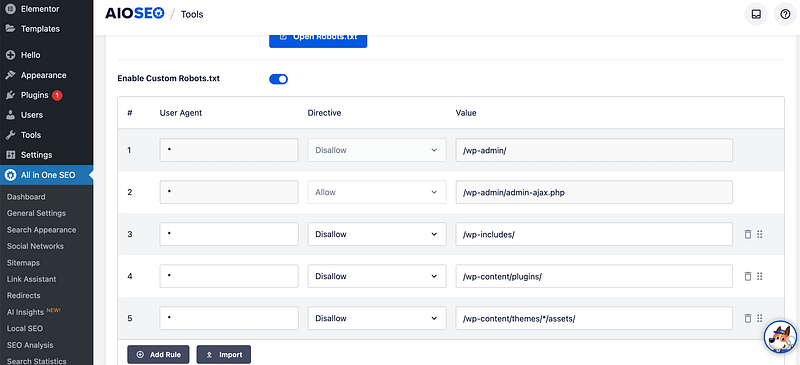
Auditing Your .htaccess 301 Redirects
HTTP errors, such as 404 and 410 pages, can significantly consume your crawl budget. You don’t want search engines to waste valuable resources crawling pages that don’t exist instead of indexing important content.
A 301 redirect is a permanent redirect from one URL to another. When someone (or Google) tries to visit the old URL, the server automatically sends them to the new location. The “301” part tells search engines: “This page has permanently moved. Transfer all the SEO juice to the new URL.”
So I did, accessed my .htaccess file from cPanel and made sure they all worked.
Canonicalization
Canonicalization is a big word! But it basically means: when there are multiple versions of the same page, Google chooses only one to keep in its index. Google will select a canonical URL that will appear in search results.
This process is known as canonicalization.
If Google identifies duplicate content on your website without clear guidance, it might not index the page you prefer.
To address this, you can add a canonical tag (<link rel="canonical" href="..." />) in the HTML of that DESIRED page. This tag informs search engines which version of the page is the primary one to be indexed. This can also be done with All in One SEO.
Page Speeds and Response Times
Page speed is a ranking factor, especially after Google’s core web vitals documents.
I found out that page speeds and response times are NOT the same thing.
Not to get too technical, but response time measures how long it takes the SERVER to respond after the browser requests a page. This indicates database query speed, hosting quality, and plugin/code efficiency.
Thresholds:
- Good: <200ms
- Acceptable: 200–600ms
- Slow: 600–1000ms
- Problem: >1000ms
Page Speeds:
Page speed provides a fuller picture. It includes response time plus all the front end work from downloading HTML, CSS, JavaScript, images, fonts, executing scripts, etc. Core Web Vitals metrics like LCP (Largest Contentful Paint) and CLS (Cumulative Layout Shift) fall into this category.
For page speeds, you can use GTMetrix. There is a free version.
Here’s my GTMetrix report.

Here’s a simple fix list that works for WordPress, Shopify, Wix, etc.:
- Sign up for Cloudflare (free) and turn it on. This makes everything load faster from servers close to your visitors.
- For WordPress, install one good speed plugin like NitroPack. Turn on the main switches: lazy-load pictures, convert images to WebP, delay JavaScript, remove unused CSS.
Response Time/Page Speed Fixes:
- Take a look at your Screaming Frog results for every single page that loads slowly (above 600–1000ms).
- Take the slowest pages, open them in Chrome, press Ctrl+Shift+I, go to the Lighthouse tab, and click “Generate report.” Google will tell you exactly what’s wrong on that page.
- Put the same pages into GTmetrix. You’ll get a beautiful timeline (called a waterfall chart) that shows which images, scripts, or files are the real troublemakers.
- Optimise your images with plugins like Image optimization service by Optimole.
I would not obsess over page speeds unless your site is really extremely slow. It can get really technical unless you have a development background. Combine it with Google’s Lighthouse extension tool and GTmetrix for a more detailed report. To fix core web vitals, hand it to a developer.
Sometimes, more speed plugins that minify code and leverage browser caching on WordPress can ‘mess up’ your codebase, especially if you’re using theme editors like Elementor.
The Website Quality Audit Master Sheet
The cool part about aggregating the data is that you get to lead into a content audit as well. You get to map your ranking keywords, low hanging fruit opportunities, and required on page fixes all in one view!

I personally designed my own website quality audit, so much so that the main sheet pulls data from Screaming Frog exports, GA4 exports, GSC exports, and Ahrefs exports. Yes, you do not even need the paid version of Screaming Frog to do this.
Steps for a Holistic Content Audit
Screaming Frog Export
- Crawl site, export “Internal > All”
- Key columns: Address, Status Code, Title 1, Meta Description 1, H1-1, Word Count, Indexability, Canonicals, Response Time, Inlinks, Outlinks
GA4 Export
- Pages and screens report (Engagement > Pages and screens)
- Set date range (min 3 months, ideally 12)
- Export: Page path, Views, Users, Sessions, Avg engagement time, Conversions, Bounce rate
GSC Export
- Performance > Pages tab
- Date range matching GA4
- Export: Page, Clicks, Impressions, CTR, Average position
- I do a separate export for Queries filtered by page (and a separate dump too)
The concept for topical maps is popularised by Koray Tuğberk GÜBÜR. He even argued that most SEO tools are not measuring keyword difficulty correctly, as it has evolved into a query based one. Koray goes to great lengths to explain technical intricacies of topical maps. I use an 80/20 rule.
SEMRush/Ahrefs
- First I’ll look for organic rankings
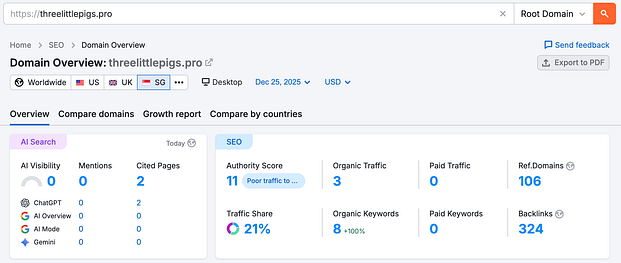
These reports are taken when I am rejigging my site, and midway through an entire overhaul of SEO content audit. Hence, don’t mind the statistics. Yet I am organically ranked for a couple of legal marketing keywords.

- Then the backlinks tab

Now, let’s move on to the fixes, interpretation of the data, and action steps!
Fixes to Implement: Content Audit
Thin/Duplicate Content: Add, Edit or Delete?
Firstly, identify and enrich pages with thin content that offers little value to users. This is also subjective as Google has evolved its search into a query-based one.
The theory is: if a 200-word page answers the user’s query, it’ll rank.
Look for pages with under 600 words that aren’t ranking and aren’t targeting any keywords. Theoretically, they ‘don’t add any value’, so look for ways to combine content with other core pieces to make these core pieces stronger.
Mapping Keywords (Queries) to Content
Here’s where AHREFS/SEMRush audits can come in useful. Through Google Keyword Planner, SEMrush, Ahrefs, and similar third-party tools, you can map your existing pages, blog posts, and content to keywords. This can also account for topical authority.
Keywords today should be seen as queries. Queries from users boil down to search intent.
This means, to audit search intent, you can open up an incognito window, query that targeted keyword, look at the top ten to twenty search results, and identify “what is the user looking for?”
Are the search results informational, transactional, navigational, or a mix? Then you work backwards from there and take a look at your own content.
Look at the gaps in existing content in the top search results. Is there a topic or subtopic not covered in the top results? Or are users actually looking for something else?
E-E-A-T (Experience, Expertise, Authoritativeness, Trustworthiness)
Google today faces an AI spam issue. LLMs can spin out content in just one click. Creating content that ticks the usual SEO boxes is blasé. Your content has to tick the boxes for E-E-A-T. Google has also made E-E-A-T a ranking factor.
I don’t obsess over E-E-A-T, but one lens to view this through is to imagine yourself stumbling upon a website and asking: “Can I trust this?”
Here are some simple ways to improve your E-E-A-T:
- Design a professional and user-friendly website
- Demonstrate credentials and be clear about who is behind the content (consider author pages and author boxes at the end of blog articles)
- Use data, reference studies, and cite experts in your content
- Optimise your About Us and Contact Us pages: include social media links and highlight your expertise
Identifying Quick Content Wins
First, look for pages with a 200 status that are at position 10–20. Check your GSC and Ahrefs/SEMrush audits. These pages can be quick wins for you. If the CTR is low, implement meta optimisation: write a better title tag and meta description, perform a content audit, and point internal links towards that page.
Through GA4, you can also look for pages with high bounce rates and short engagement. This could mean there’s a content quality issue. The content may not be fulfilling the user’s query. For pages with impressions but no clicks, this could be a SERP snippet problem. Try optimising your meta descriptions and title tags.
The idea is this: implement urgent fixes on technical errors on high traffic pages, and look for quick wins on pages that are ranked at position 10–20.
Broken Links/Internal Linking
Firstly, fix the broken links. Secondly, implement strategic internal linking. This ‘distributes’ page authority and helps users navigate your site. It also aids search engines in understanding the relationship between your pages.
There’s no need to overcomplicate this. Link related articles that form a content cluster together, then link upwards towards a core page.

Backlink Audit
Let’s move on to the quality of your site’s backlinks.
The conventional advice is to disavow spam or negative SEO backlinks. Yet as of recently, Google has recommended that you disavow links only when you’ve received a manual site penalty.
John Mueller from Google mentioned at NYC’s search event:
“So internally we don’t have a notion of toxic backlinks. We don’t have a notion of toxic backlinks internally.
So it’s not that you need to use this tool for that. It’s also not something where if you’re looking at the links to your website and you see random foreign links coming to your website, that’s not bad nor are they causing a problem.
For the most part, we work really hard to try to just ignore them. I would mostly use the disavow tool for situations where you’ve been actually buying links and you’ve got a manual link spam action and you need to clean that up. Then the Disavow tool kind of helps you to resolve that, but obviously you also need to stop buying links, otherwise that manual action is not going to go away.”
Nonetheless, it’s good to get a rough gauge of the backlinks pointing to your site. I use a manual eye test of the site’s content. I then pop the site into Semrush/Ahrefs domain checker, looking for current ranked content, relevance, and quality organic traffic.
You’ll be able to get a good feel if it’s a relevant and/or quality site.
One metric (not perfect) is to look at Trust Score from Majestic SEO to determine relevancy to your niche. I use this metric when processing outreach prospects for link building at scale. You don’t need this if you’re auditing a single site.
Conclusion
I shall revisit this article again on Chrome’s Lighthouse extension, page speed audits, fixes, and better understand it from a development standpoint. Currently, my coding credentials are similar to that of a professional vibe coder.
Nonetheless, this article provides a detailed, intuitive method of doing a low cost, and in fact, free technical SEO audit for micro to small business owners.
